
DotCam for Android
Get the Android app from Google Play.
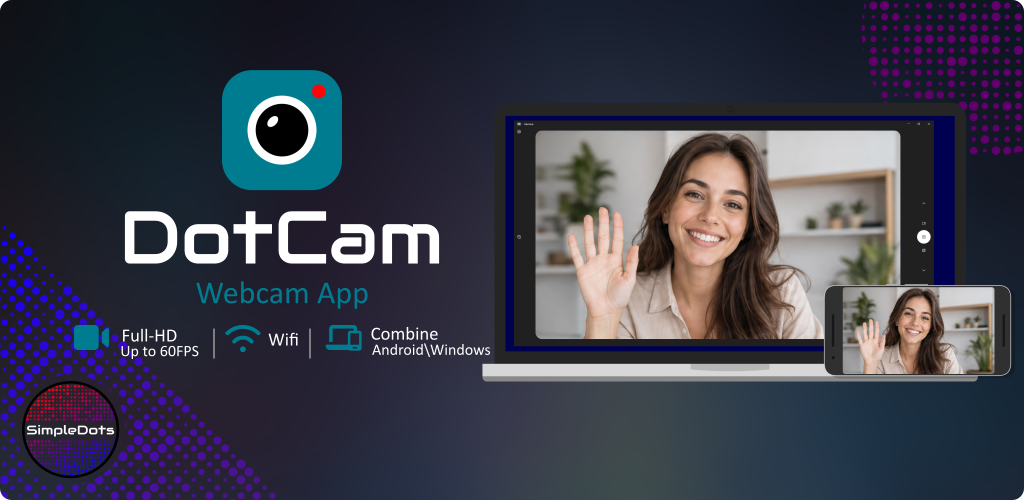
Turn your Android device into a webcam for your Windows PC with DotCam and DotCamClient.
DotCam focuses on quality, privacy, and control. Supports Full HD and up to 60 FPS.
Before setting up DotCam, ensure the following requirements are met.
Your Android device and Windows PC must be connected to the same local network. For the best experience, use a modern router with a stable signal and sufficient bandwidth.
DotCam supports up to 60 FPS. For smooth 60 FPS playback, a 60 Hz or higher display is recommended. If you use 30 FPS, this is less important and considered optional.
Additional Visual C++ Redistributable installation is required. DotCamClient supports Windows 10 and Windows 11. If you are interested in Linux support, please let me know.
Download the Android app from Google Play and the Windows client from this page.
Get the Android app from Google Play.
Download the Windows client here. Select a version from the list below.
DotCam is ready in just a few simple steps.
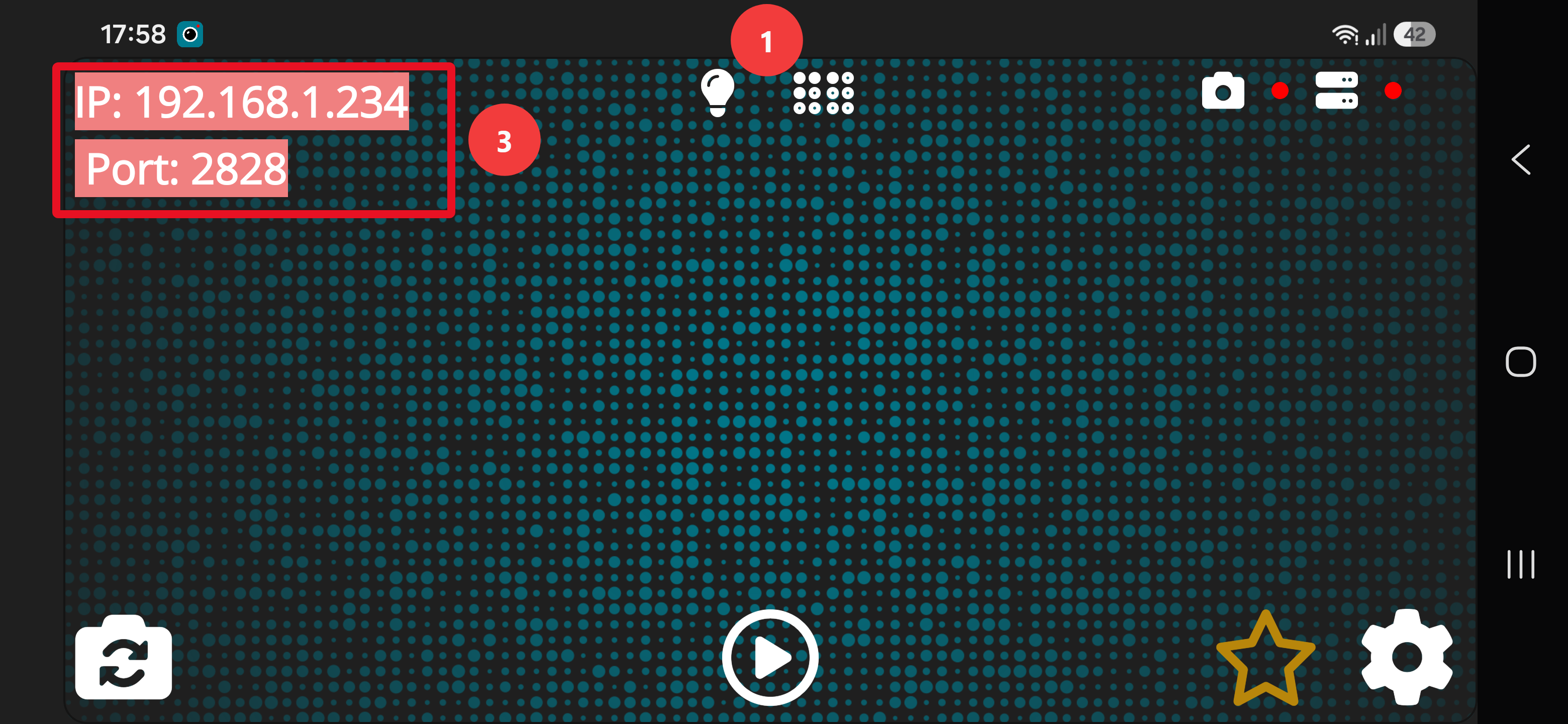
Open the DotCam app on your Android device and keep it running.
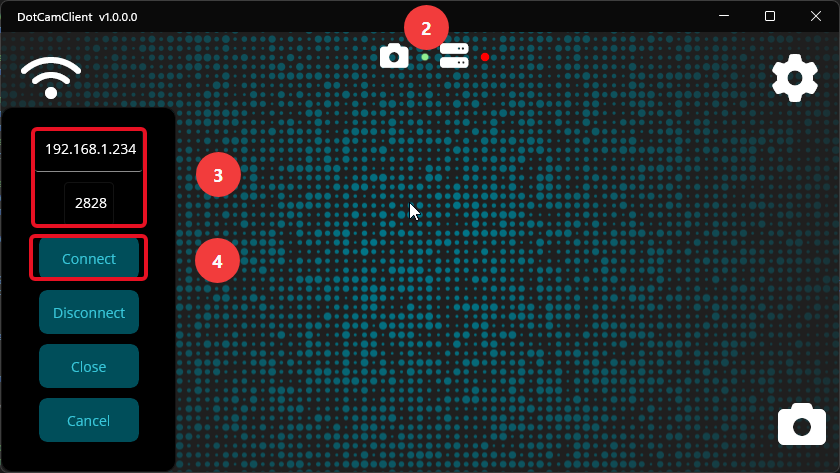
Open DotCamClient on your Windows PC.
In DotCamClient, enter the IP address and port shown in the Android app.
Click Connect to establish the connection between both devices.
If something does not work as expected, the following notes may help you solve the most common issues.
Make sure both apps are running and that your Android device and Windows PC are connected to the same local network. Check whether the IP address and port were entered correctly. Restart both apps if necessary.
If the connection was lost and cannot be restored, restart both apps and reconnect. Also verify that your network connection is still stable and that the Android app is still active.
Make sure you are signed in with a Google account on your Android device. In some cases, an active internet connection may be required so the purchase status can be verified.
Try lowering the resolution, frame rate, or bitrate. A modern router and fast Wi-Fi are strongly recommended for the best experience. Depending on the selected settings, the Android device may also not have enough performance. If needed, try using a USB OTG network adapter for a more stable connection.
In rare cases, local app data may become corrupted. For DotCamClient, try deleting the settings.json file and start the app again. If the Android app still crashes after a restart, please reinstall it.
Windows path:
C:\Users\YourName\AppData\Local\User Name\com.simpledots.dotcamclient\Data
If a connection is currently active, disconnect it first. Then close all applications that are using the camera(with taskmanager) before making changes. After that, adjust the camera settings or restart the camera from within DotCamClient.
A local firewall or security software may block the connection between your Android device and your PC. If DotCam cannot connect, allow DotCamClient through the Windows Firewall and verify that local network communication is not restricted by your router or security settings.
DotCamClient supports different ways to provide the camera feed on Windows. Especially after Windows updates, it may be necessary to re-register the camera component. This mainly affects the Direct Show filter mode.